
How do job change alerts work?
Track your contacts and get alerted when they start a new job or leave their company. You can also save each change on the contact in your CRM.
On this page
- What you'll learn
- 1. Start tracking contacts
- One contact, from LinkedIn
- A whole list, from the dashboard
- How long tracking lasts
- 2. Where you see job changes
- In the Hublead dashboard
- In the extension
- In Slack and by email
- When you are alerted
- 3. What Hublead writes in your CRM
- The existing contact is updated, never duplicated
- The Hublead job change properties
- You choose per segment
- You choose per list view
- You choose per list
- 4. How many credits tracking uses
- FAQ
- Can I try job change alerts before moving to Scale?
- Does Hublead create a new contact when someone changes jobs?
- Will Hublead overwrite the company or job title in my CRM?
- I turned on "Save the job change" but see nothing in my CRM yet. Why?
Job change alerts tell you when a contact you track starts a new job or leaves their company, so you can reach them at their new company first. They are included in the Scale plan. Professional and Business do not include them.
What you'll learn
- How to start tracking contacts
- Where you see job changes
- What Hublead writes in your CRM
- How many credits tracking uses
1. Start tracking contacts
One contact, from LinkedIn
Open the contact's LinkedIn profile, go to the Job change section of the Hublead panel, and track the contact in one click.
A whole list, from the dashboard
HubSpot
Open the Job changes page of your Hublead dashboard and click Watch a segment.
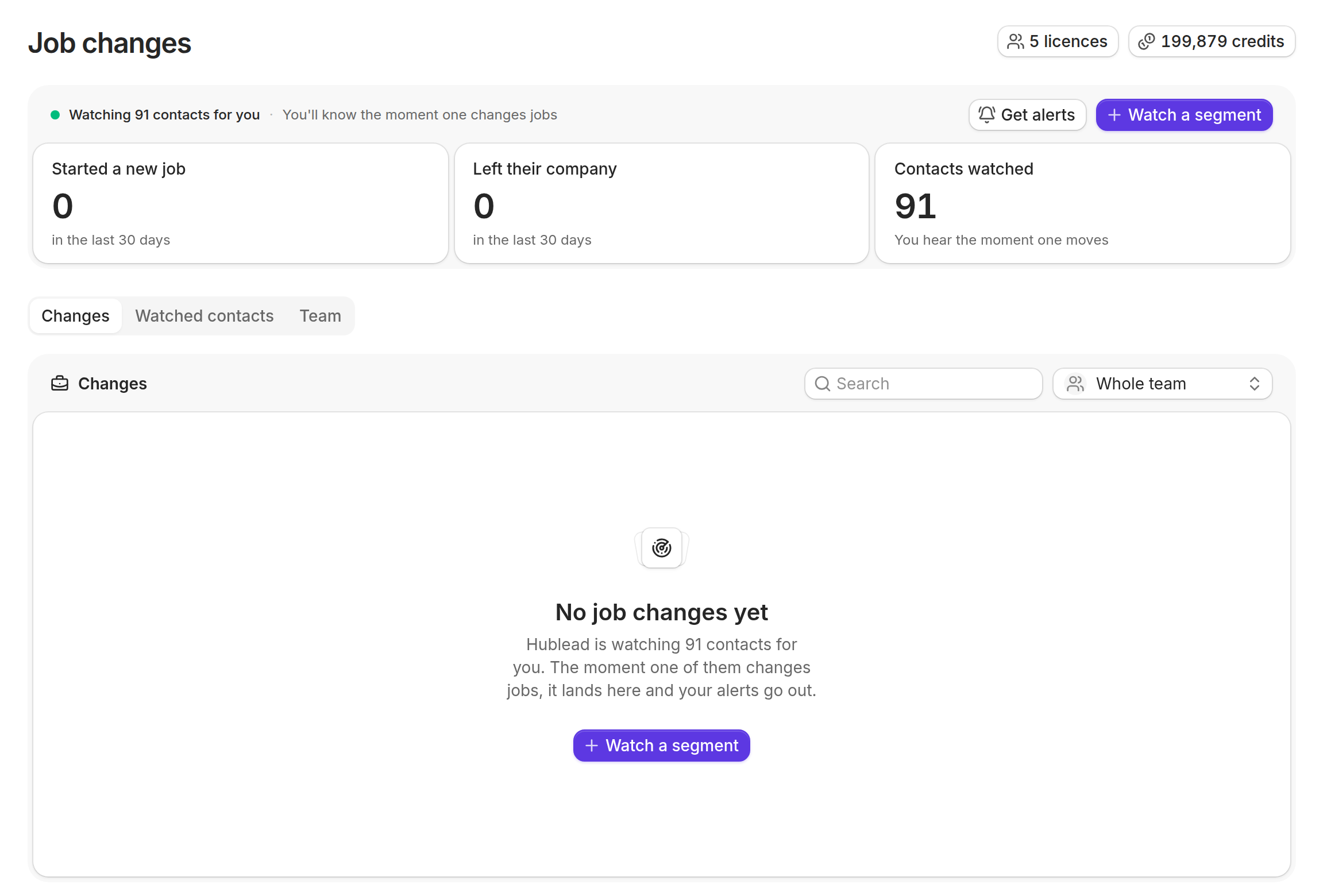
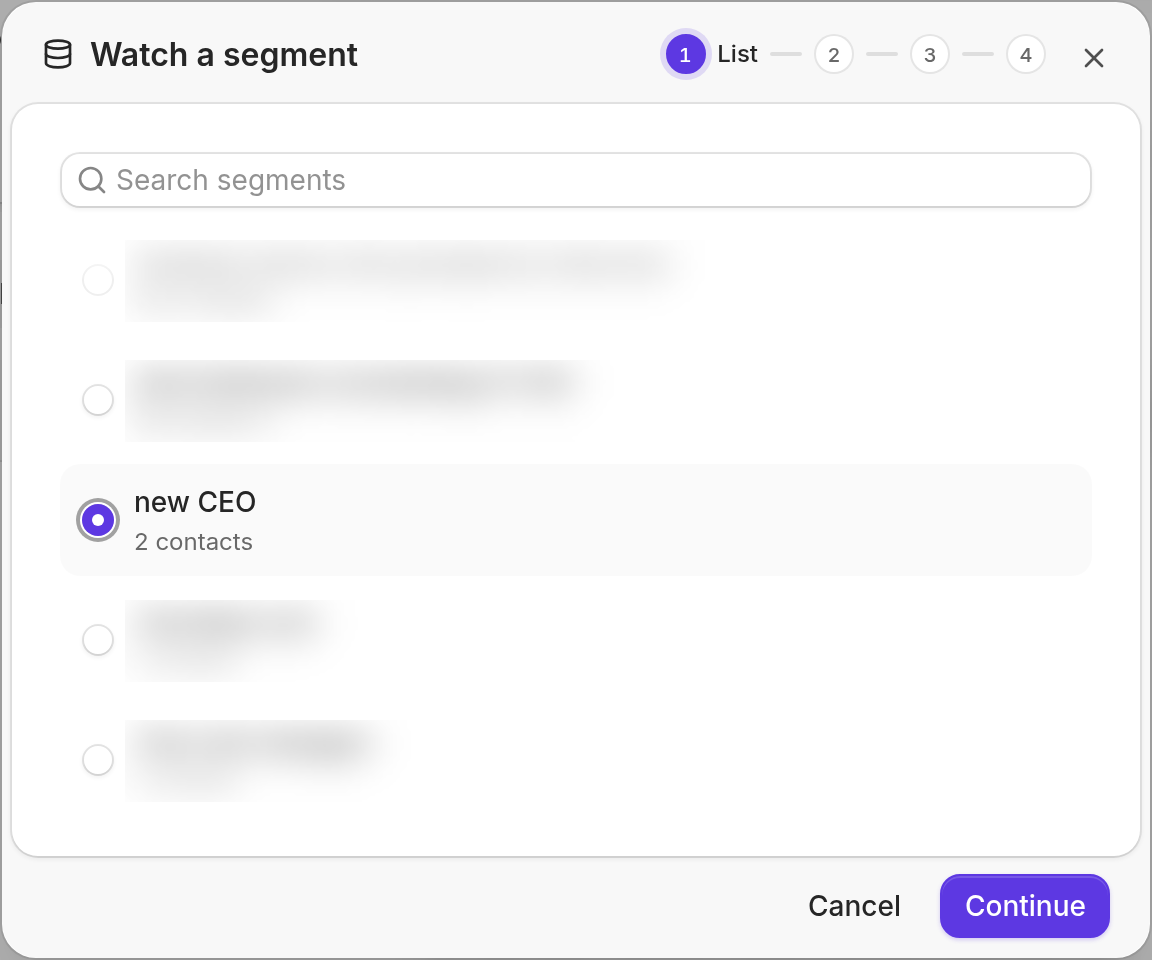
The window takes you through 4 steps:
- List: pick a HubSpot static segment. Active segments can't be watched: if you have no static segment, create one in HubSpot, then come back here.
- Contacts: untick anyone you don't want to watch. You are charged only for the contacts that stay ticked.
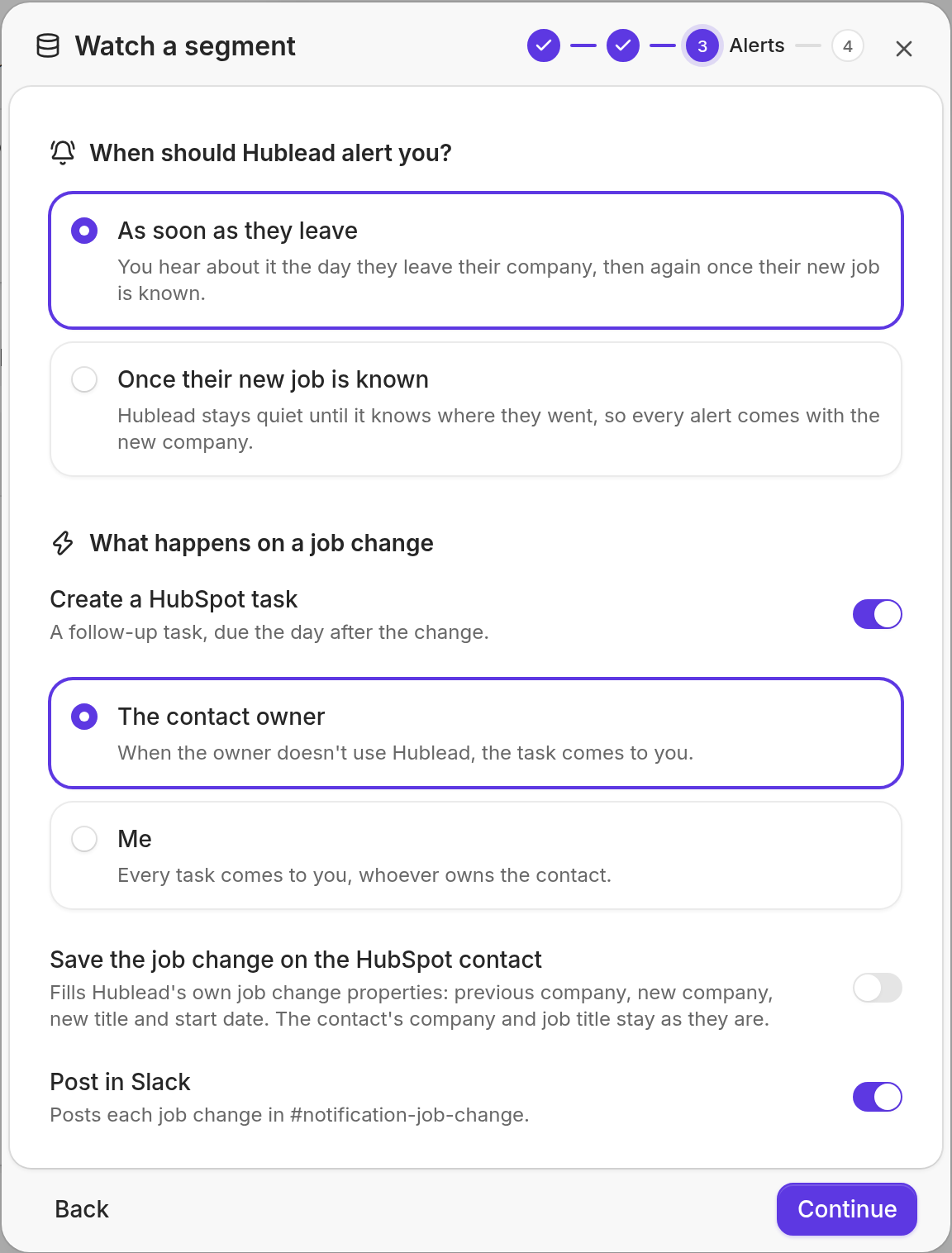
- Alerts: choose when Hublead alerts you and what happens in HubSpot (see section 3).
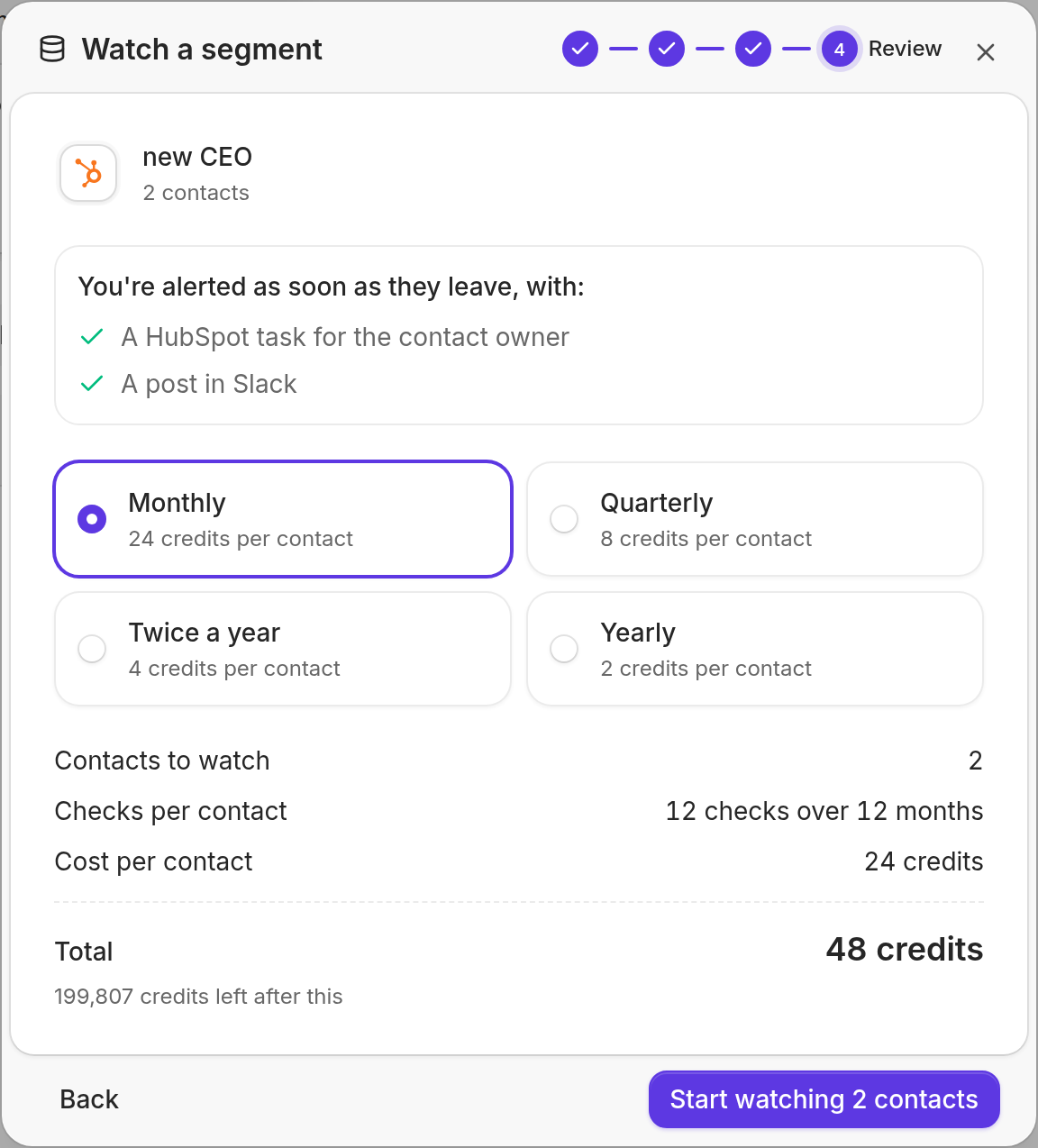
- Review: choose how often each contact is checked, check the total in credits, then click Start watching.
Salesforce
Open the Job changes page of your Hublead dashboard and click Watch a list view.
The window takes you through 4 steps:
- List: pick a Salesforce list view. If you have none, create one in Salesforce, then come back here.
- Contacts: untick anyone you don't want to watch. You are charged only for the contacts that stay ticked.
- Alerts: choose when Hublead alerts you and what happens in Salesforce (see section 3).
- Review: choose how often each contact is checked, check the total in credits, then click Start watching.
Attio
Open the Job changes page of your Hublead dashboard and click Watch a list.
The window takes you through 4 steps:
- List: pick an Attio list. If you have none, create one in Attio, then come back here.
- Contacts: untick anyone you don't want to watch. You are charged only for the contacts that stay ticked.
- Alerts: choose when Hublead alerts you and what happens in Attio (see section 3).
- Review: choose how often each contact is checked, check the total in credits, then click Start watching.
Contacts without a LinkedIn profile, and contacts already watched, are skipped. No credit is spent on them.
How long tracking lasts
Every contact is tracked for 12 months from the day you start.
2. Where you see job changes
In the Hublead dashboard
The Job changes page shows how many contacts started a new job or left their company in the last 30 days, and how many you watch. The Changes tab lists every change: who moved, where from, where to, and their new title. You can switch between your own contacts and the whole team's. The Watched contacts tab lists every contact you watch, with its status and the date tracking ends.
In the extension
A badge appears as soon as there is a new job change, and the contact's Job change section shows where they are now.
In Slack and by email
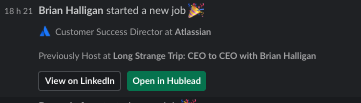
Hublead can post each job change in a Slack channel (an option of the Alerts step), and send you a weekly or monthly email recap of the job changes among your contacts. Each Slack post names the contact, their new role and company, and where they were before, with buttons to open the profile on LinkedIn or in Hublead.
When you are alerted
At the Alerts step, you choose between two timings:
- As soon as they leave: you hear about it the day they leave their company, then again once their new job is known.
- Once their new job is known: Hublead stays quiet until it knows where they went, so every alert comes with the new company.
3. What Hublead writes in your CRM
The existing contact is updated, never duplicated
Hublead updates the contact you track. It never creates a new contact at the new company, and it never changes the contact's company and job title. Your CRM history stays intact, and your team decides what to do next.
HubSpot
The Hublead job change properties
| Property | What it holds |
|---|---|
| Job Change Date | When the person started the new job |
| Job Change Detected At | When Hublead spotted the change |
| Job Change Type | The kind of change, for example Started a new job |
| Job Change Previous Company | The company they left |
| Job Change New Company | Where they work now |
| Job Change New Title | Their new role |
| Job Change Watch Status | Whether the contact is still watched: active, paused, ended or stopped |
You can use these properties in HubSpot lists, views and workflows.
The change is also logged as a Hublead event on the contact's timeline, for example: Changed job: Acme → Globex as Chief Revenue Officer.
You choose per segment
These options are set for each segment you watch, at the Alerts step of Watch a segment:
- Create a HubSpot task: a follow-up task, due the day after the change, for the contact owner (when the owner doesn't use Hublead, the task comes to you) or for Me (every task comes to you).
- Save the job change on the HubSpot contact: fills the Hublead job change properties above.
- Post in Slack: posts each job change in your Slack channel.
Salesforce
You choose per list view
These options are set for each list view you watch, at the Alerts step of Watch a list view:
- Create a Salesforce task: a follow-up task, due the day after the change, for the contact owner (when the owner doesn't use Hublead, the task comes to you) or for Me (every task comes to you).
- Save the job change on the Salesforce contact: fills Hublead's own job change fields: previous company, new company, new title and start date.
- Post in Slack: posts each job change in your Slack channel.
Attio
You choose per list
These options are set for each list you watch, at the Alerts step of Watch a list:
- Create an Attio task: lets you choose who gets the follow-up task due the day after the change, either the contact owner (when the owner doesn't use Hublead, the task comes to you) or Me (every task comes to you).
- Save the job change on the Attio contact: fills Hublead's own job change fields: previous company, new company, new title and start date.
- Post in Slack: posts each job change in your Slack channel.
Whatever you choose, every job change still shows in Hublead.
4. How many credits tracking uses
The credits for the full 12 months are taken when tracking starts. The cost depends on how often each contact is checked.
| Check frequency | Checks per year | Credits per contact, 12 months |
|---|---|---|
| Every month | 12 | 24 |
| Every 3 months | 4 | 8 |
| Every 6 months | 2 | 4 |
| Every year | 1 | 2 |
Example: tracking 100 contacts every 3 months uses 100 × 8 = 800 credits, taken once, for the whole year.
Credits come from your workspace pool, the same one used for enrichment. See How Hublead credits work.
FAQ
Can I try job change alerts before moving to Scale?
Contact us. A Scale trial includes job change alerts.
Does Hublead create a new contact when someone changes jobs?
No. Hublead only updates the contact you already track.
Will Hublead overwrite the company or job title in my CRM?
No. The new job goes into Hublead's own job change fields. The contact's company and job title stay as they are.
I turned on "Save the job change" but see nothing in my CRM yet. Why?
Hublead writes to your CRM only when it detects a change. If none of the contacts you watch has moved yet, there is nothing to write.
Updated 25 November 2026