
Important: before you start
Plan availability
- Bulk export is available only on the Hublead Scale plan.
- Export from a lead profile (single lead) is available on all Hublead plans.
If you don’t see the bulk export option described below, confirm your subscription includes the Scale plan.
Why Hublead enriches contacts with emails
When you export contacts from Sales Navigator, Hublead also enriches contacts with email addresses (when available). This helps you:
- Prevent duplicates in HubSpot by improving matching accuracy.
- Increase contact quality by importing more complete records from the start.
- Reduce manual clean-up after importing.
Where exports happen
All exports start in LinkedIn Sales Navigator, inside the Leads/Contacts area (search results, filters, or lists).
From there, Hublead supports two export flows:
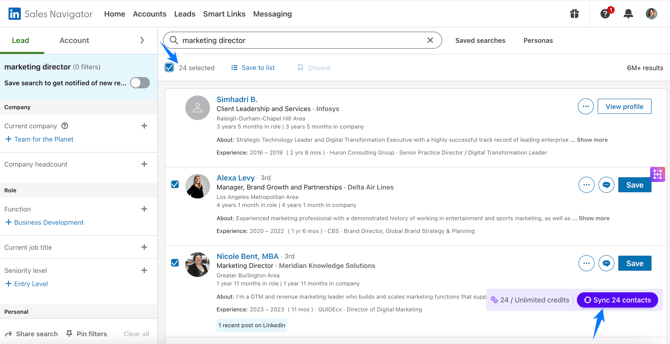
- Bulk export (1 to 25 leads at a time) — Scale plan only
Use this when you want to export multiple leads directly from a list, search, or filtered results without opening the lead profile.
Steps
- Open Sales Navigator and go to your leads/contacts search results (or a list).
- Apply your filters (optional).
- Select leads from the list (minimum 1, maximum 25 per export).
- Click the Hublead export action.
- Confirm the export.
What happens next
- Hublead exports the selected leads into HubSpot contacts.
- If the contact already exists in HubSpot, Hublead will update it (depending on your Hublead configuration and matching rules).
2. Export from a lead profile (single lead) — Available on all plans
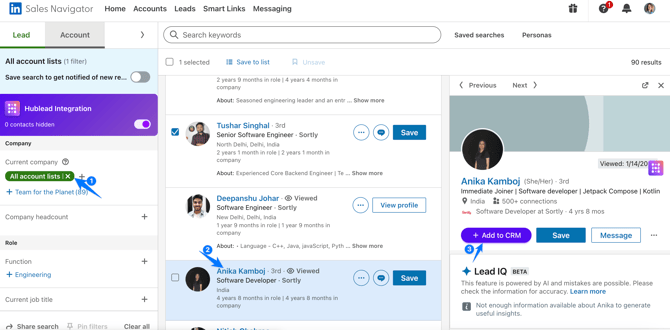
Use this when you want to export one specific lead, after opening their Sales Navigator profile.
Steps
- Open Sales Navigator.
- Find a lead using the search bar or your filtered lead list.
- Click the lead to open the lead profile.
- Use the Hublead export action from the profile view.
- Confirm the export.
Common issue: Sales Navigator Profile URL is empty in HubSpot
Symptom
After importing/exporting, the Sales Navigator Profile URL field in HubSpot appears empty.
Why this happens
Hublead only imports the Sales Navigator profile link when the contact is imported directly from Sales Navigator, for example:
- Exporting from a Sales Nav list/search (bulk export)
- Exporting from an open Sales Nav lead profile
If the contact was:
- imported from standard LinkedIn (not Sales Navigator), or
- created in HubSpot another way (manual creation, other integrations, etc.)
…then the Sales Navigator URL may remain empty.
How to fix it
- In HubSpot, confirm how the contact was created/imported (the source matters).
- If the contact did not originate from Sales Navigator, re-import the contact from Sales Navigator using one of the two export options above (bulk or lead profile).
- Re-check the contact record: the Sales Navigator Profile URL should now populate.
Quick checklist (if exports don’t work as expected)
- For bulk export: you are on the Hublead Scale plan.
- You are exporting from Sales Navigator leads/contacts, not standard LinkedIn.
- For Sales Nav URL issues: the contact was exported directly from Sales Navigator (otherwise, re-export).