
We’ll go through:
- Permission problems and how to solve them
- How to check that Chrome and the Hublead extension are up to date
- How to reinstall everything from scratch and try again
1. Permission problems and how to solve them
Most connection issues are caused by missing permissions in HubSpot. Before you do anything else, check that your user has the right access.
1.1. Required HubSpot permissions
1.1.0 Steps covered in the video
1.1.1 Step by step with screenshots
-
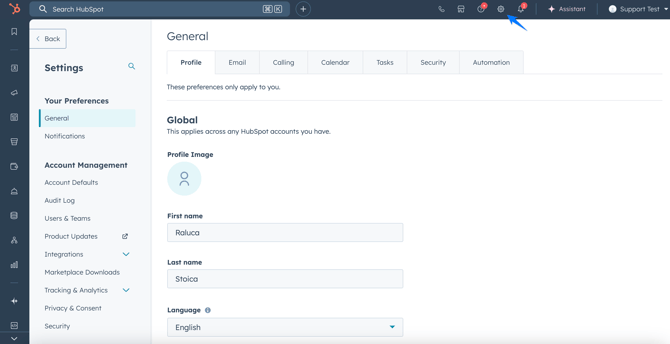
Open HubSpot settings
- In your HubSpot account, click the settings ⚙️ icon in the top navigation bar.
-
Go to Users & Teams
-
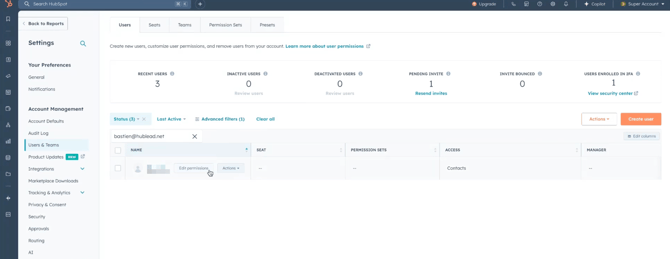
In the left sidebar, go to Users & Teams to see the list of users in the account.
.png?width=670&height=344&name=CleanShot%202025-12-08%20at%2016.22.24@2x%20(1).png)
3. Select the user who needs Hublead
-
-
Find the user who is trying to install or use Hublead (you can search by name or email).
-
Click “Edit permissions”
-
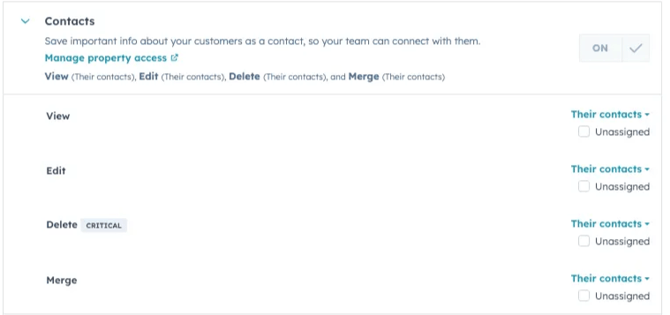
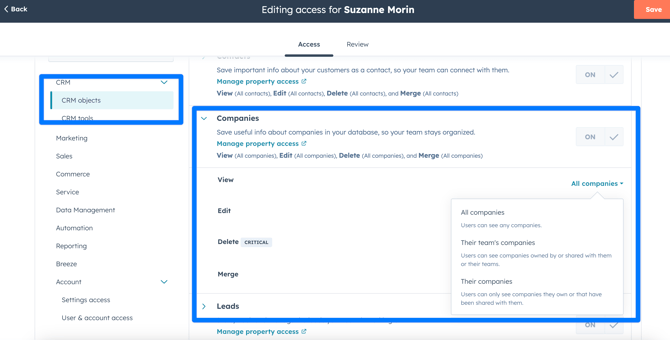
4. Here you can decide which permissions to give (contacts, companies, edit properties, app marketplace) and the level of permissions (”their own contacts)
To connect and use Hublead correctly, your HubSpot user should have at least:
-
Contacts: permission to edit the contacts you own (or broader)
- Companies: permission to edit the companies you own (or broader)
- Deals: permission to edit the deals you own (or broader)
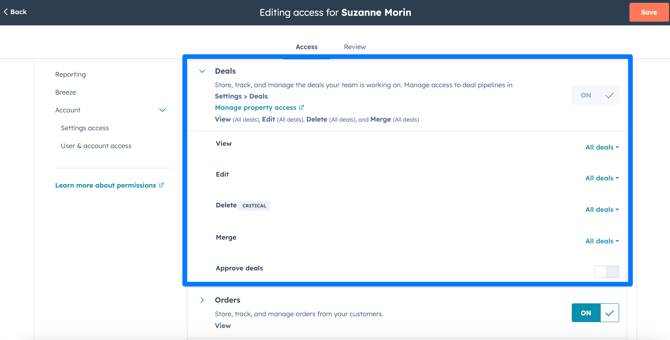
- Lists: Read & Write access
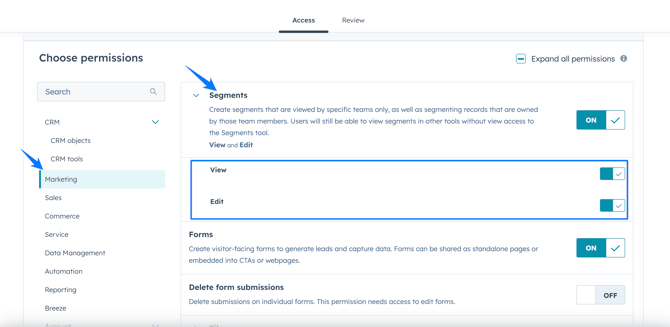
- Edit property settings: permission to edit property settings

- App Marketplace Access
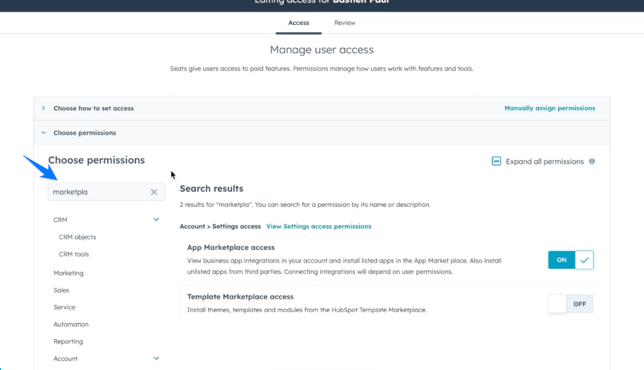
If you’re not a Super Admin, you may need to ask your admin to review and update your permissions.
💡 Tip: You’ll only see HubSpot accounts where the email you used to log into HubSpot is actually added as a user in that account.
1.2. Common error messages and what they mean
“You need the App Marketplace access permission set to install this app”
.png?width=670&height=544&name=image%20(12).png)
This means your user does not have App Marketplace Access in HubSpot.
What to do:
-
Contact your HubSpot admin or Super Admin.
-
Ask them to enable App Marketplace Access for your user.
Hi [Admin's Name],
I'm trying to connect Hublead to HubSpot, but I'm getting a permissions error saying I don’t have App Marketplace access.
Could you please enable App Marketplace access for my user so I can install and use Hublead?
For reference, here’s a short guide that shows where this permission lives in HubSpot and how to update it.
Thanks a lot for your help!
-
Once updated, try connecting Hublead again from the Chrome extension.
“Couldn’t complete the connection”
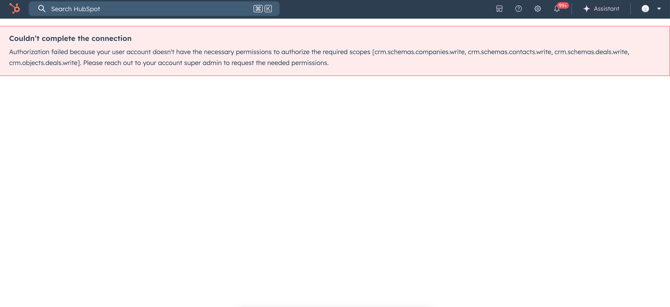
This usually indicates missing or insufficient permissions, such as:
- Not being allowed to read, edit or delete contacts you own
- Not being allowed to read, edit or delete companies you own
- Not being allowed to read, edit or delete deals you own
- No access to Edit Property Settings
- No Read & Write access to Lists
What to do:
-
Share the error with your HubSpot admin.
-
Ask them to review and update your permissions based on the list above.
Hi [Admin's Name],
I need a few HubSpot permissions enabled for optimal use of Hublead:
- Editing rights for contacts, companies, and deals I own, at least.
- Ability to edit property settings.
- Access to the App Marketplace.
- Read & Write Lists.
For a clearer understanding, here's a quick tutorial with more details and guidance on how to find and enable these permissions.
Your assistance in setting up these permissions would be greatly appreciated.
-
After changes are saved, try the connection again.
“Error 400: Something went wrong while processing your request”
This error can appear when the authentication flow between Hublead and HubSpot fails or takes longer than expected.
- First, check if Hublead is listed as a Connected App in HubSpot:
- Go to Settings → Connected Apps.
- Look for Hublead in the list.
.png?width=670&height=439&name=image%20(13).png)
2. If you see Hublead there, click “Uninstall”.
.png?width=670&height=384&name=image%20(14).png)
3.Then reconnect Hublead from the Chrome extension (see section 3 below).
4. If the error keeps showing, wait about 10 minutes and try again.
5. If it still doesn’t work, contact us via chat on our website or email our support team.
2. Check Hublead extension & Chrome version are up to date
If your permissions are correct but you still have issues, the next step is to make sure Chrome and the Hublead extension are fully updated.
2.1. Update Google Chrome
- Open Chrome on your computer.
- Click the three dots (⋮) in the top-right corner.
- Go to Help → About Google Chrome.
.png?width=670&height=492&name=image%20(15).png)
- Chrome will automatically check for updates and start updating if a new version is available.
- When the update is complete, close and reopen Chrome to apply it.
.png?width=670&height=375&name=image%20(16).png)
2.2. Update the Hublead Chrome extension
Quickest method (recommended):
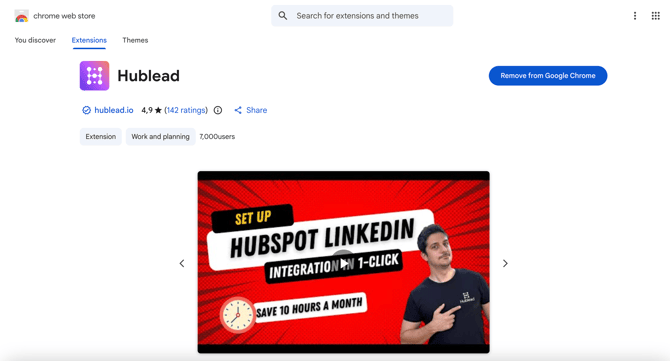
- Go to the Chrome Web Store page for the Hublead extension (or click the direct link to the extension).
- Click Remove from Chrome (if installed) and confirm.
- Then click Add to Chrome to install the latest version.
Alternative: Force-update from the Extensions page
-
In Chrome, click the three dots (⋮) in the top-right corner.
-
Select More tools → Extensions.
-
In the top-right of the Extensions page, turn on Developer mode.
.png?width=670&height=300&name=image%20(17).png)
-
- Click the Update button that appears – this will refresh all extensions, including Hublead.
.png?width=670&height=281&name=image%20(18).png)
3. Reinstall from scratch, then retry
If permissions are correct and everything is updated but you still can’t connect, do a full clean reinstall and then reconnect Hublead.
3.1. Step 1 – Remove Hublead from HubSpot (Connected Apps)
-
In HubSpot, go to Settings → Integrations → Connected Apps
.png?width=670&height=389&name=CleanShot%202025-11-26%20at%2008.02.40@2x%20(1).png)
- Look for Hublead in the list & click on uninstall.
.png?width=670&height=343&name=CleanShot%202025-11-26%20at%2008.03.20@2x%20(1).png)
3.2. Step 2 – Remove and reinstall the Hublead Chrome extension
- In Chrome, go to Extensions:
- Click the puzzle icon or the three dots → More tools → Extensions.
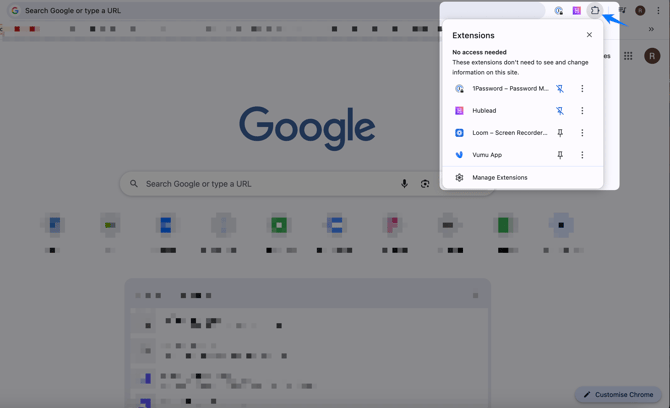
- Find the Hublead extension and click Remove.
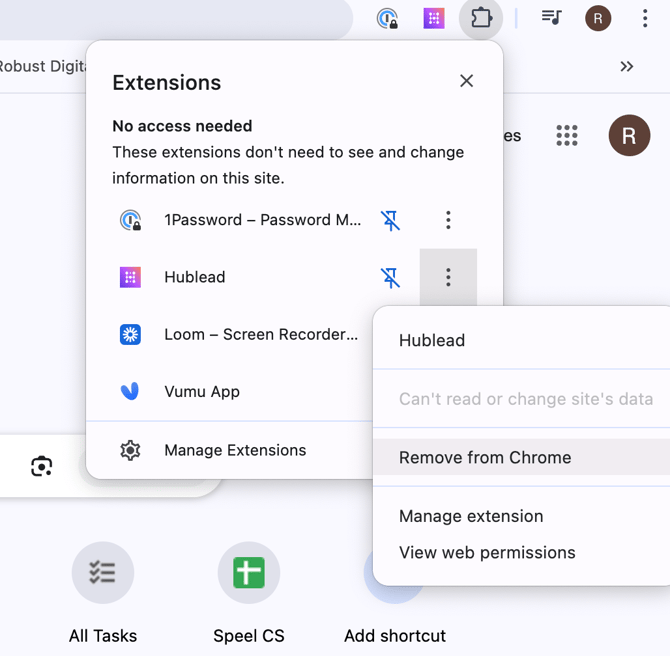
- Go to the Chrome Web Store page for Hublead.
- Click Add to Chrome to install it again (check previous steps)
- Click the puzzle icon or the three dots → More tools → Extensions.
3.3. Step 3 – Connect Hublead to HubSpot again
Once the extension is reinstalled:
- Open LinkedIn in Chrome.
- Hublead will open a panel/welcome message.
- Click “Connect HubSpot!”.
- Log in to HubSpot (email, Google, or SSO).
- Choose the HubSpot account you want to connect to (you will only see accounts where your email is added as a user).
- When the connection is completed, go to any LinkedIn contact and click “Add to CRM” to start using Hublead.
3.4. If it still doesn’t work
If, after all these steps, you still can’t connect:
- Wait 10 minutes – sometimes HubSpot authentication can take longer than expected.
- Try reconnecting again from the Hublead extension on LinkedIn.
- If the problem continues, reach out to us:
- Via the chat on our website
- Or via email to our support team, including:
- A short description of the issue
- The exact error message you see
- Any relevant screenshots