
1. Make sure the LinkedIn contact is in HubSpotWhen you navigate to a LinkedIn or Sales Navigator contact profile, look for the "Add to CRM" option. If you see this option, you will need to add the contact to CRM or link it to an existing one.
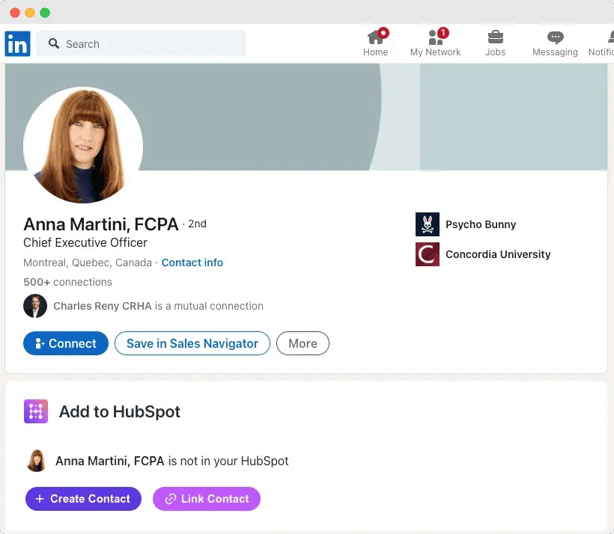
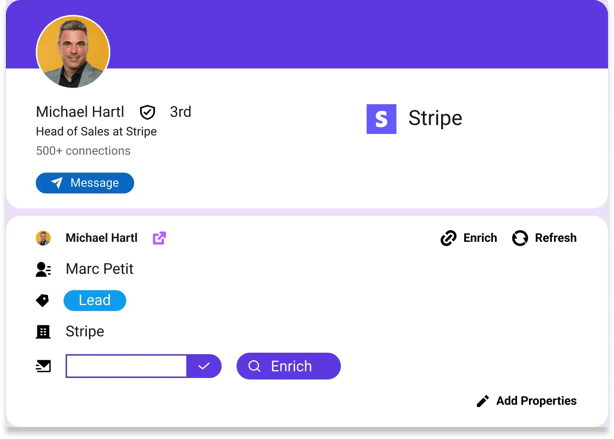
If, instead, you see the display shown below, this confirms that the contact is already in HubSpot.
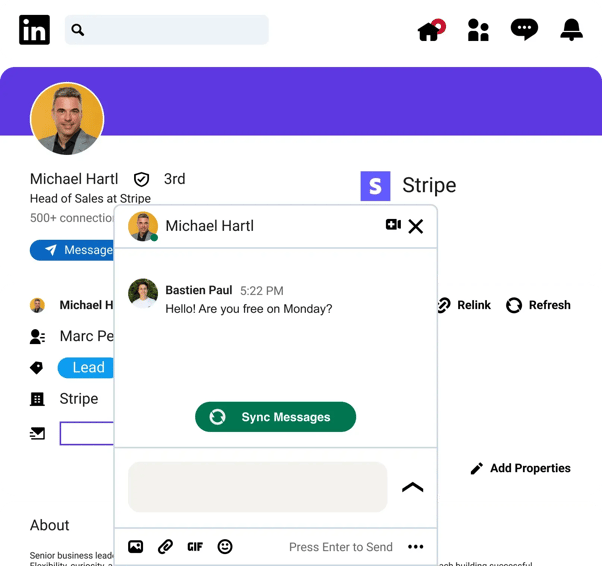
In the Professional plan, you need to click on "Sync Messages" to import the LinkedIn messages to HubSpot, like below.
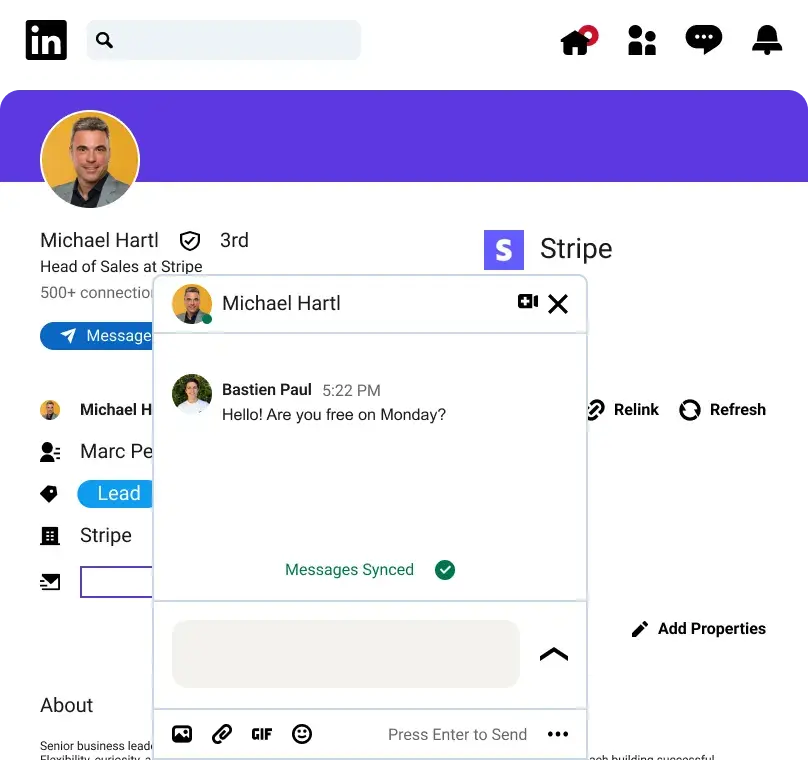
In the Business plan, when you open the chat, it will automatically import the LinkedIn messages, no need to click on "Sync Messages".
Tips:
- Once you imported the contacts and messages you can click on "Messages Synced" to open the contact in HubSpot
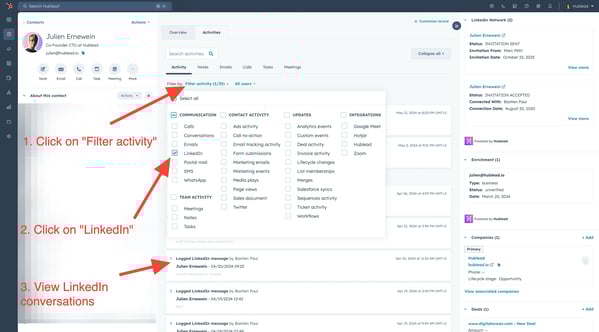
Go to the contact on HubSpot and make sure the filter "LinkedIn" is activated in Activities.
- Click on "Filter activity"
- Click on "LinkedIn"
- That's it!
Tips:
- To keep your activity feed organized, we log one activity per day for conversations. When syncing new messages, we update the last activity if it's from the same day or create new activities if it's from a different day.
- Additionally, we log the last 20-30 messages from each conversation to ensure you have the most recent interactions at your fingertips.
You can check our detailed guide here
Can I import only some messages from a conversation?
No. Hublead cannot import only selected messages within the same conversation (for example, only a few messages or only specific parts of a thread). This is not supported and is not currently a feature.
Can I import messages only from a specific date?
Yes, with a constraint.
Hublead can be configured to import messages starting from a specific date, per Hublead user. This configuration is not self-serve in the app: you need to send our team a CSV file containing:
- the Hublead user email
- the start date from which messages should be imported
Once applied, Hublead will import messages from that date onward for the specified user.
CSV format
Please send a CSV with the following columns:
email(Hublead user email)start_date(recommended format:YYYY-MM-DD)
How to request the change
- Export or create the CSV using the format above.
- Send it to Hublead support, and specify you want to set a message import start date per user.
- Our team will confirm once the configuration is applied.
Important notes
- This setting applies per user (you can include multiple rows for multiple users).
- The start date controls the earliest messages to import; it does not allow selecting individual messages inside a conversation.