
Summary
To connect Hublead to LinkedIn, you need to install the Hublead Chrome extension, open LinkedIn in Chrome, and connect your HubSpot account through the Hublead prompt. Once connected, you can visit a LinkedIn profile and use Add to CRM to sync contact data to HubSpot. If the connection does not work, reinstall the extension, check your HubSpot permissions, and retry the connection.
Description and steps to resolve the issue
Hublead connects LinkedIn to HubSpot through the Hublead Chrome extension. After installing the extension and connecting your HubSpot account, you can sync LinkedIn contacts directly into your CRM.
How to connect Hublead to LinkedIn and HubSpot
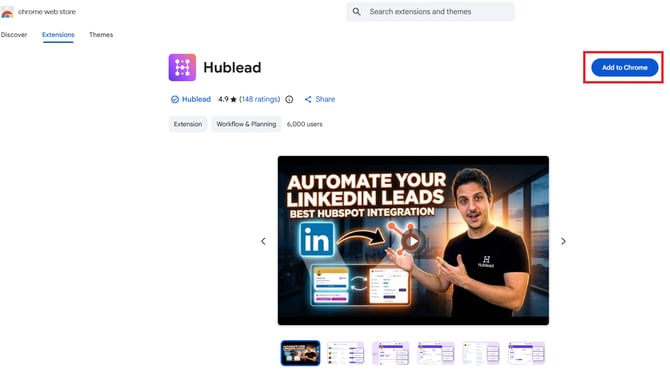
- Install the Hublead Chrome extension from the Chrome Web Store by clicking Add to Chrome
- Open LinkedIn using Google Chrome.
- Hublead should display a welcome message and prompt you to click Connect HubSpot!
- Log in to your HubSpot account using your email, Google login, or SSO.
- Select the HubSpot account you want to connect.
- You will only see HubSpot accounts where your email is registered as a user.
- Once Hublead is connected, open any LinkedIn contact profile.
- Click Add to CRM to sync the contact data to HubSpot.
If you cannot connect Hublead
If the connection does not work, we recommend performing a clean reinstallation of the extension and reconnecting your account.
- In HubSpot, go to Settings → Integrations → Connected Apps.
- If Hublead is listed there, uninstall it.
- In Chrome, go to Extensions:
- Click the three dots menu ⋮
- Go to More tools
- Click Extensions
- Remove the Hublead extension.
- Make sure Chrome is up to date:
- Click the three dots menu ⋮
- Go to Settings
- Open About Chrome
- Install any available update
- Completely close Chrome.
- Reopen Chrome.
- Reinstall the Hublead Chrome extension from the Chrome Web Store.
- Open LinkedIn again and reconnect Hublead to HubSpot.
Check your HubSpot permissions
You may also be unable to connect Hublead if your HubSpot user does not have the required permissions.
Make sure your HubSpot user has permission to:
- Edit contacts you own
- Edit companies you own
- Edit deals you own
- Edit property settings
- Access the App Marketplace
- Read and write lists
If you do not have these permissions, ask your HubSpot admin to update your access.
If the issue persists
In some cases, HubSpot authentication may take a few minutes to complete. If the setup does not work immediately, wait around 10 minutes and try again.
If you are still unable to connect Hublead, contact support and include:
- The exact error message you are seeing
- Screenshots of the issue
- The step where the connection fails
This will help the support team investigate the issue more quickly.